How to Sign Up

Home / How to Sign Up

Getting Started

Here is how it works

The parent portal is where you enroll your athlete, tell us when they are free, and keep track of their sessions. It works right in your phone's browser, no app required. Just follow the steps below.

An email address About 5 minutes Your athlete's details
Open the Portal

Part 1

Set up your athlete

A one-time setup so our coaches can build the right schedule around your player.

1

Create your account

Open the Prestige parent portal and tap "Create one" under the sign-in box. Enter your email and a password to set up your free account. Already registered? Just sign in.

Use an email you check often. That is where schedule updates are sent.
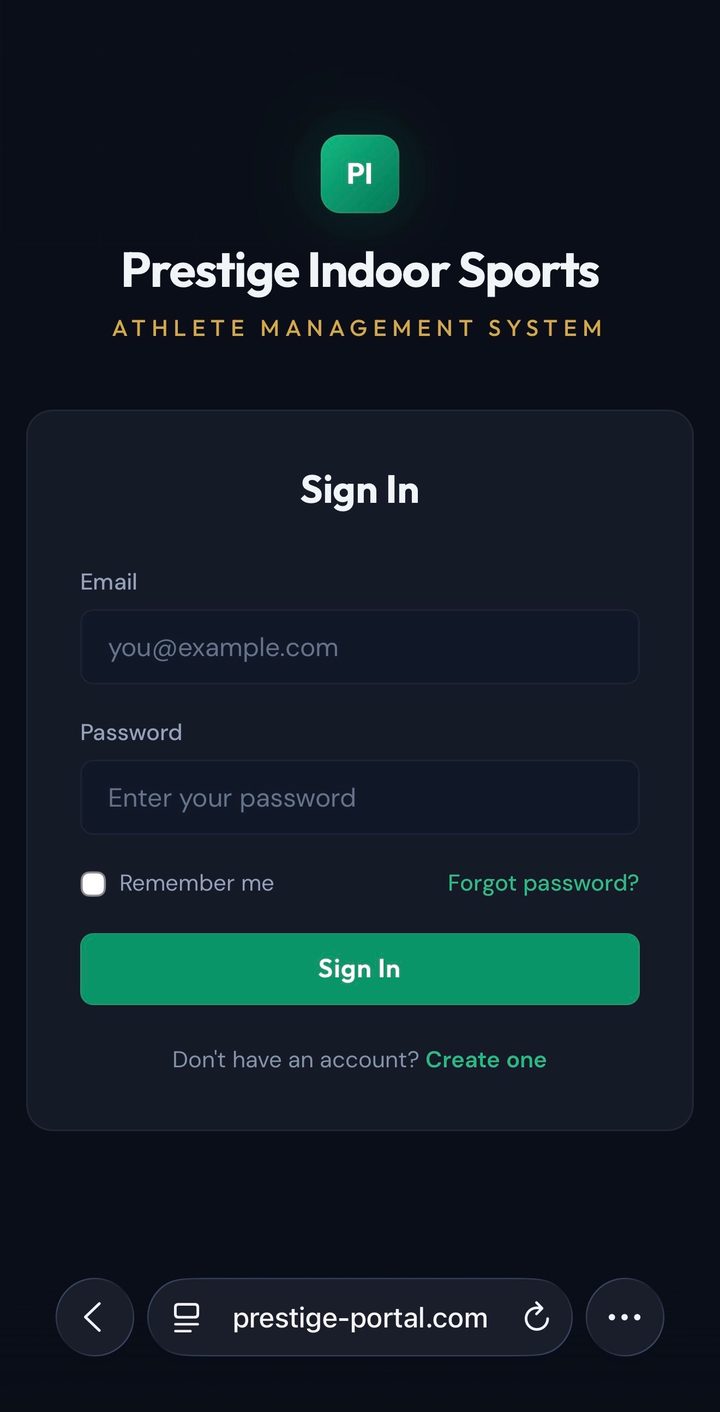
Prestige parent portal sign-in screen with a Create one link
2

Add and enroll your athlete

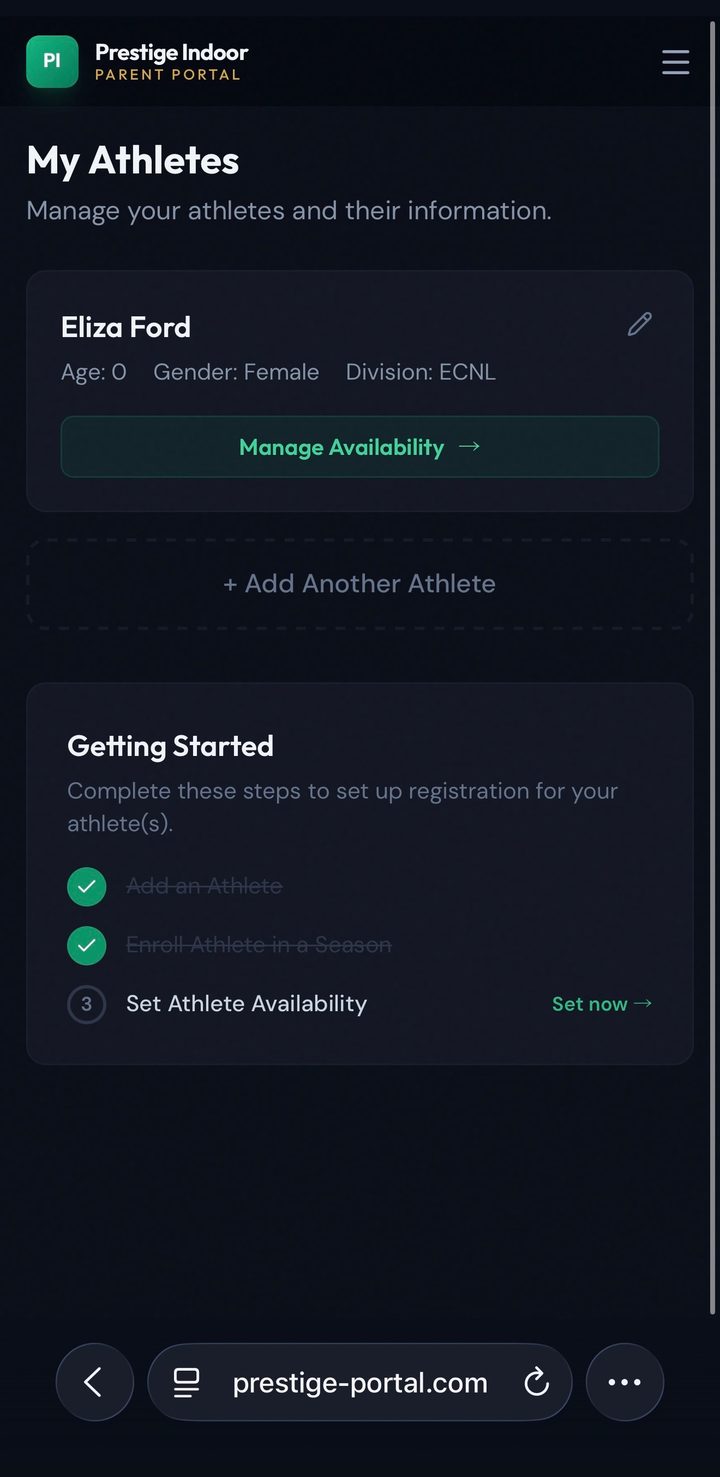
You will land on "My Athletes." Add your child's name and details, then enroll them in the current season. Coaching more than one player? Tap "+ Add Another Athlete" and repeat.

My Athletes screen showing an athlete card and a Getting Started checklist
3

Set session frequency and type

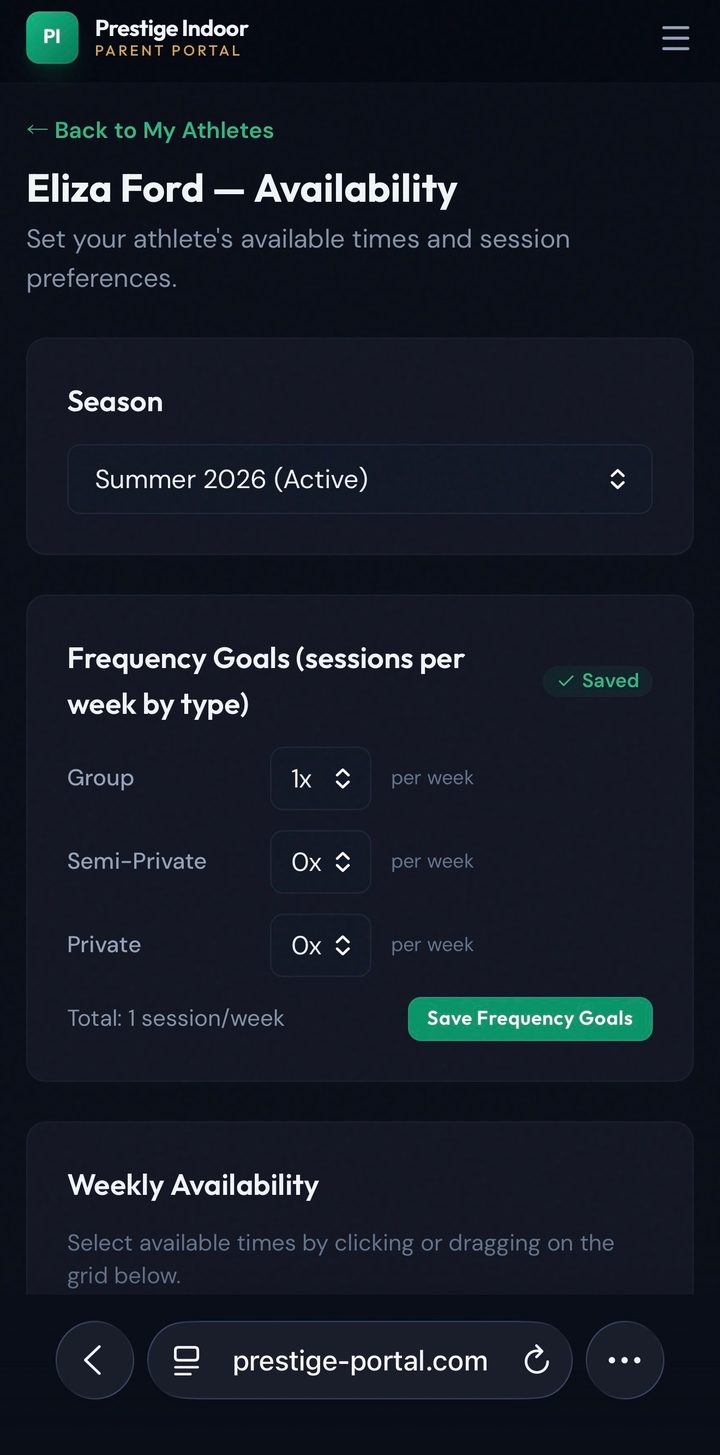
Open your athlete's availability and choose how many sessions per week you want, by type: Group, Semi-Private, or Private. Tap "Save Frequency Goals" when it looks right.

Frequency goals screen with sessions per week by type
4

Mark your weekly availability

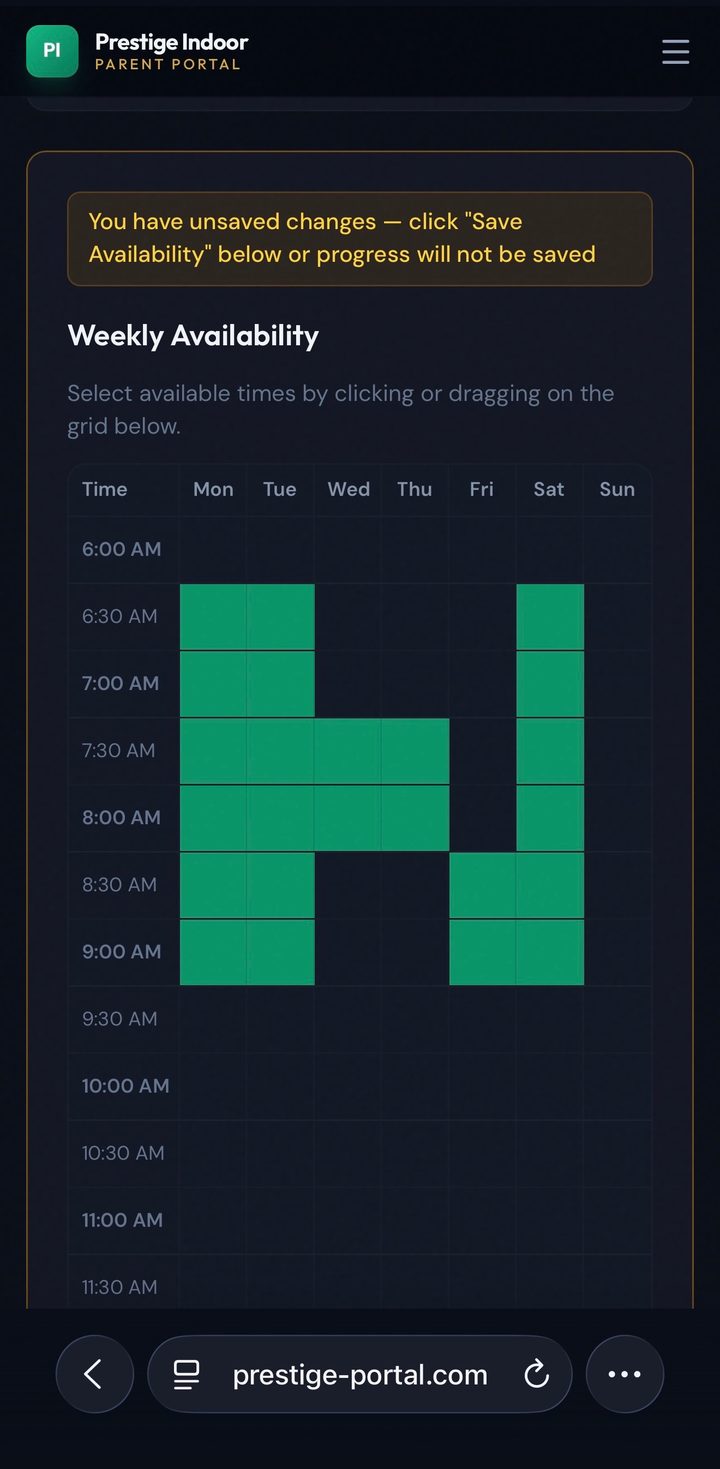
On the same screen, scroll to the weekly grid and tap (or drag) the times your athlete is free. Green means available. The more you mark, the easier it is to fit great sessions around your week.

Always tap "Save Availability" at the bottom. The page warns you if changes are unsaved.

Weekly availability grid with green time blocks selected

Part 2

Manage your schedule

Check sessions any time and handle the occasional change in a couple of taps.

5

Open the menu and tap "My Schedule"

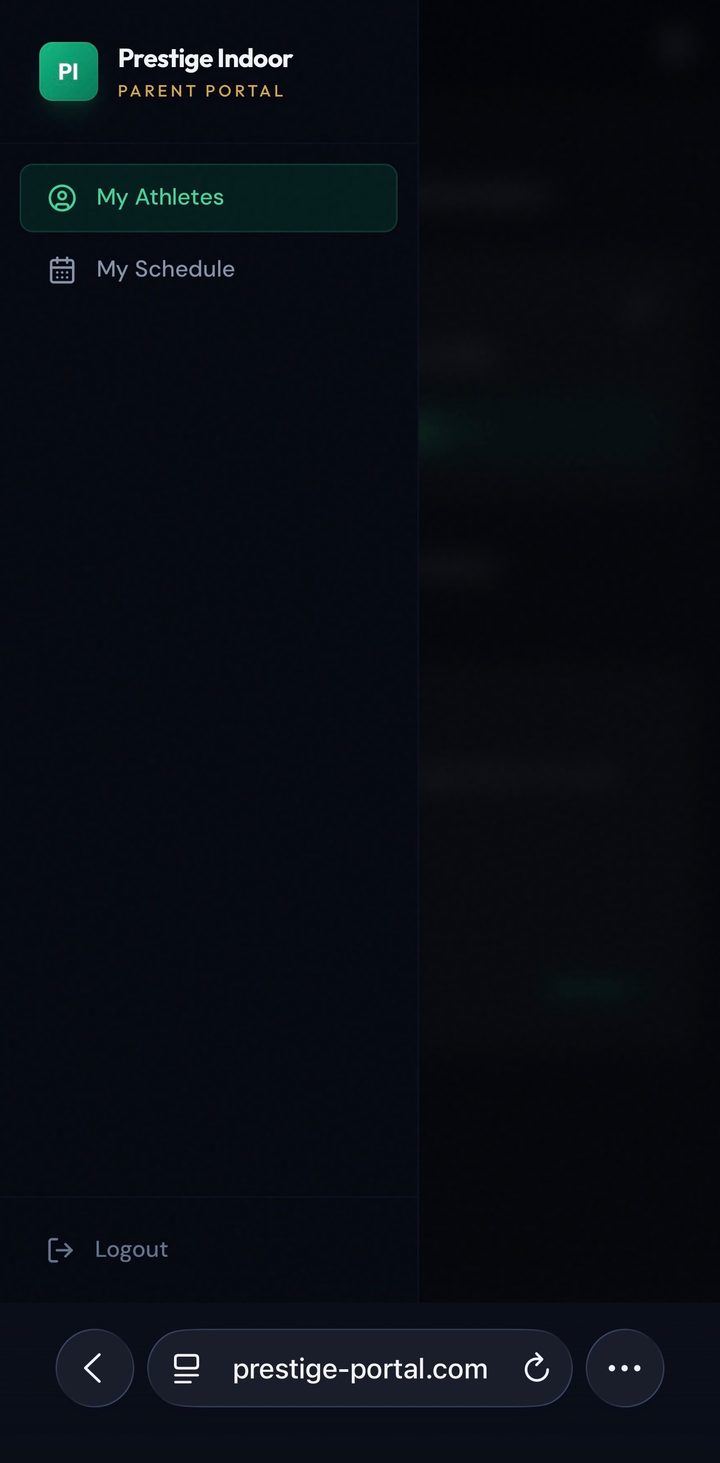
Tap the menu icon (the three lines in the top-right corner) to open the navigation, then choose "My Schedule" (the calendar icon).

Slide-out portal menu showing My Athletes, My Schedule, and Logout
6

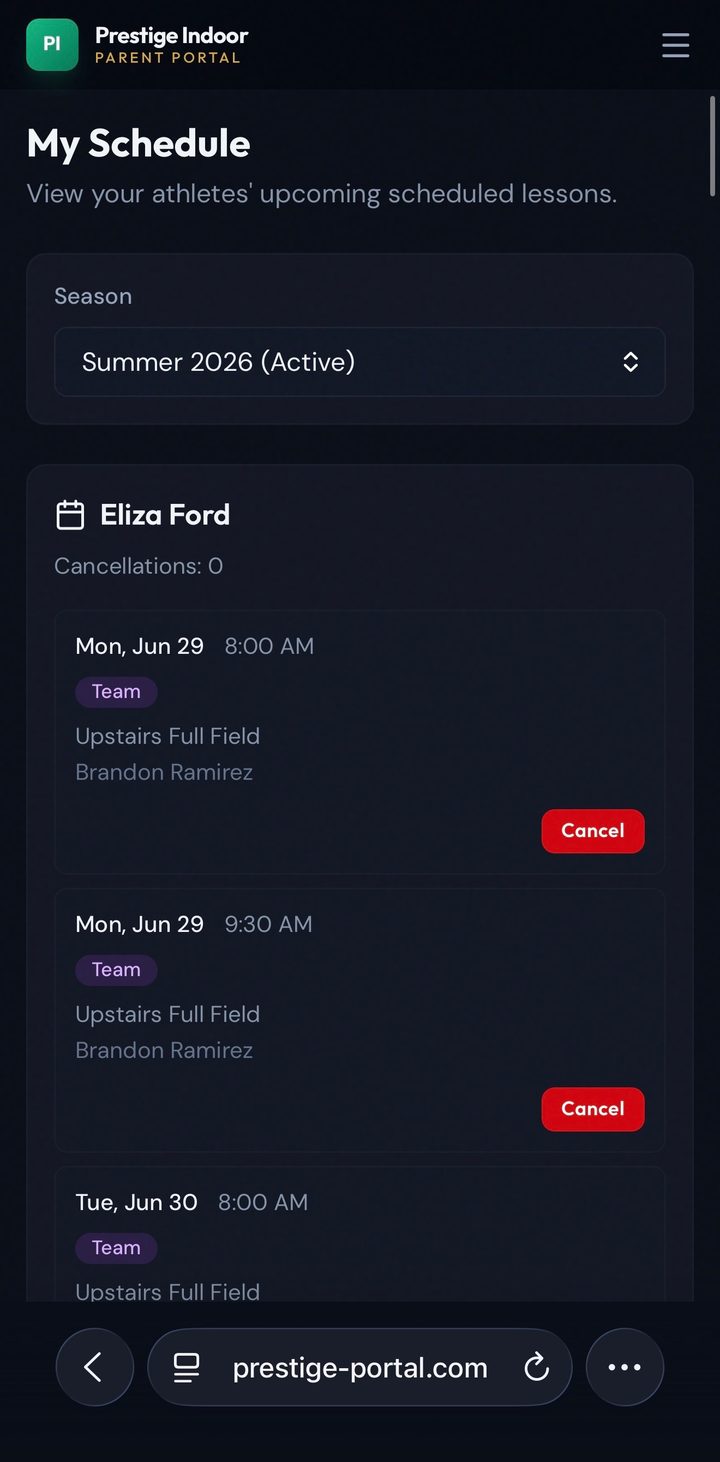
View your schedule

Pick the season at the top to see every upcoming session in one place: date, time, session type, field, and coach. It updates automatically as new sessions are added.

My Schedule screen listing upcoming sessions with details
7

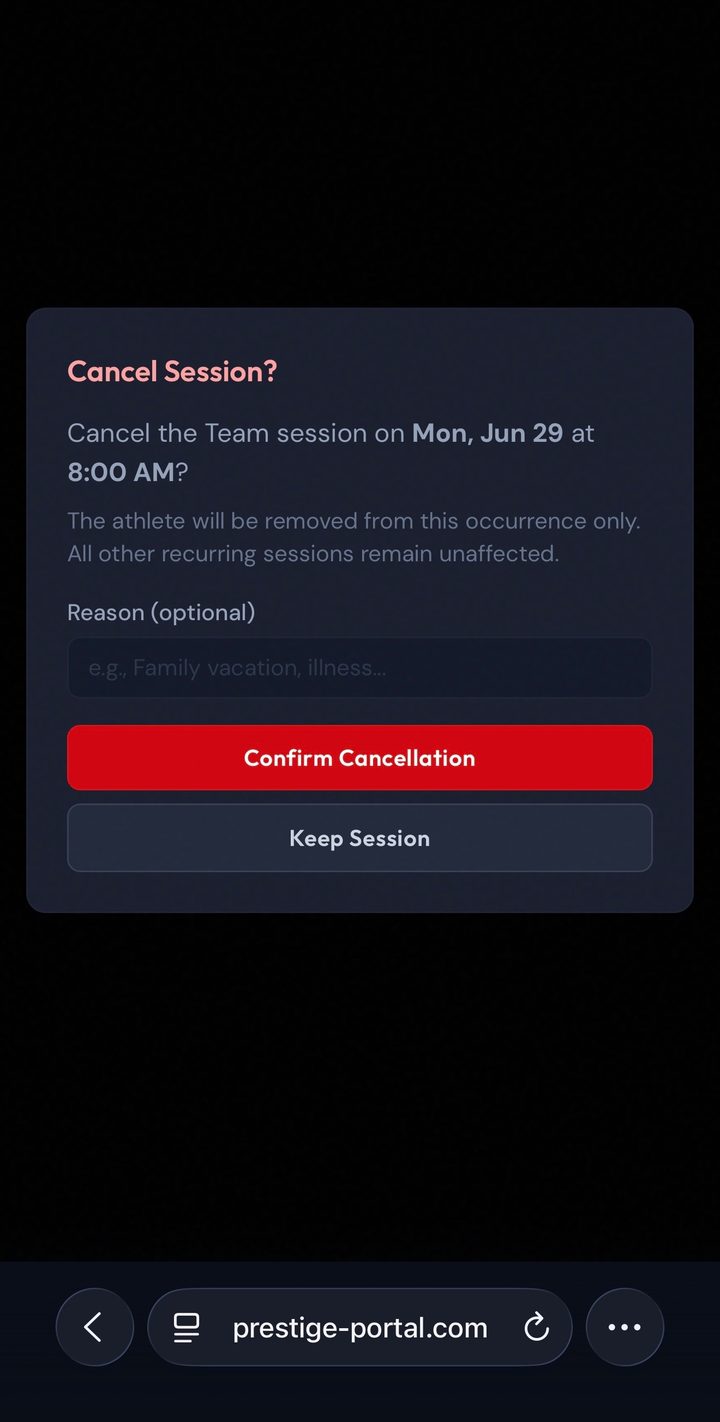
Cancel a session if needed

Need to miss one? Tap "Cancel" on that session, add an optional reason, and confirm. Only that single session is removed, so the rest of your recurring schedule stays exactly as it is.

Cancel session confirmation dialog with a reason field

FAQ

Common questions

Can I sign up more than one athlete?

Yes. On the "My Athletes" screen, tap "+ Add Another Athlete" and set up each child separately, including their own availability.

What if we need to cancel a session?

Open "My Schedule," tap "Cancel" on the session you need to miss, and confirm. Only that one session is removed. Your recurring schedule stays in place.

Is there an app to download?

No app needed. The portal runs right in your phone's web browser. For quick access, add it to your home screen.

I am stuck. Who can help?

Call us at 913-568-8145 or ask any coach at the facility, and we will walk you through it.

Ready to get started?

Create your account and set your availability, and our coaches take it from there to build the right sessions around your week.

Open the Parent Portal

Prefer to talk it through? Call 913-568-8145.

Prestige Indoor
Sports

New Indoor soccer facility open for personal training, private sessions (soccer), field rentals, birthday parties, and more!

Open Hours

Mon - Fri : 10AM - 10PM
Saturday : 10AM - 12PM
Sunday : 10AM - 2PM

Newsletter

Prestige Indoor Sports 2026 © All Rights Reserved - Website By Mint Media